
Instant features
Devtool
When you load your app in development, you'll notice a little "Instant" Icon show up:
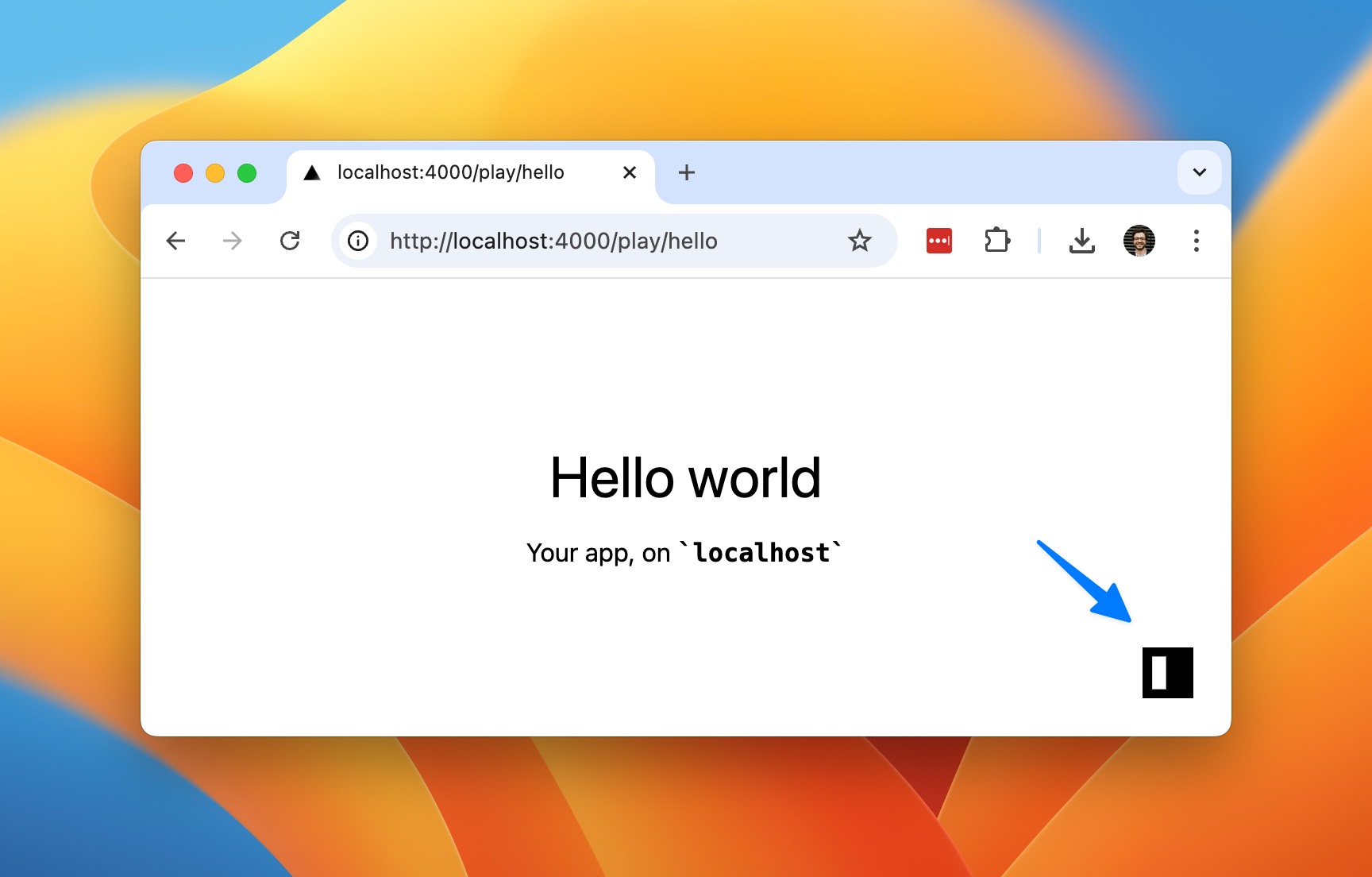
This is your handy devtool shortcut. Once you click it, you'll see a widget that lets you make changes to your app.
Use the Explorer to change up your data and schema:
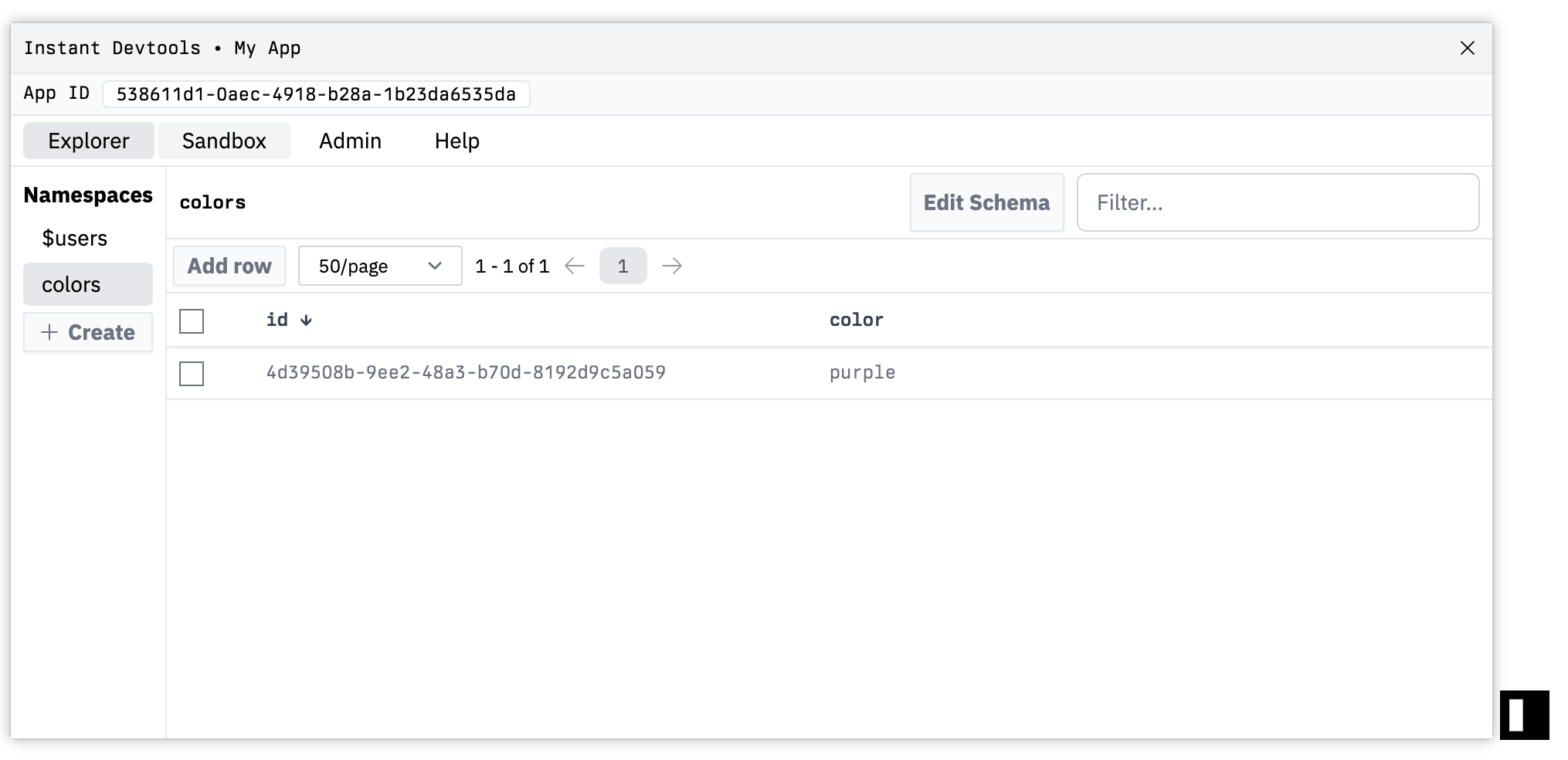
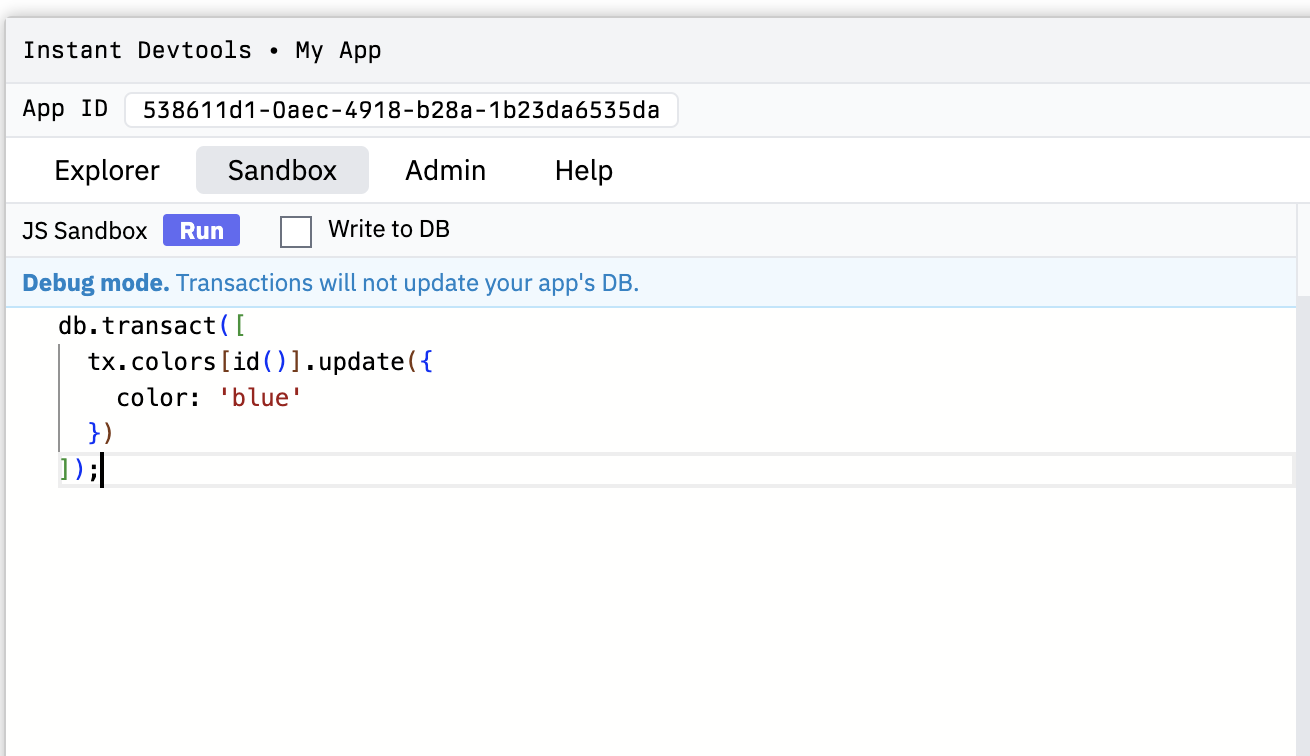
Or the Sandbox to try out different queries and transactions:
#Changing Positions
You can choose where to position your devtool as well. Pass in the devtool configuration in init:
import { init } from '@instantdb/react';import schema from '../instant.schema.ts';const db = init({appId: process.env.NEXT_PUBLIC_INSTANT_APP_ID!,schema,devtool: {position: 'bottom-right',},});
You can set bottom-left, top-left, top-right, bottom-right.
#Custom Hosts
By default, the devtool only shows up on localhost. But you can decide which hosts to show it on too. Pass in the allowedHosts option:
import { init } from '@instantdb/react';import schema from '../instant.schema.ts';const db = init({appId: process.env.NEXT_PUBLIC_INSTANT_APP_ID!,schema,devtool: {allowedHosts: ['localhost', 'site.local'],},});
#Disabling the devtool
If you would like to hide the devtool completely, you can add devtool: false in init:
import { init } from '@instantdb/react';import schema from '../instant.schema.ts';const db = init({appId: process.env.NEXT_PUBLIC_INSTANT_APP_ID!,schema,devtool: false,});
#Shortcuts
To quickly toggle the window, you can use the shortcut ctrl + shift + 0 (zero).
#Feedback?
If you have any feedback, let us know on Discord